Tutorial 1: The Basics
In this tutorial, we learn the basics of entering an ODE, specifying initial conditions, and plotting solution curves.
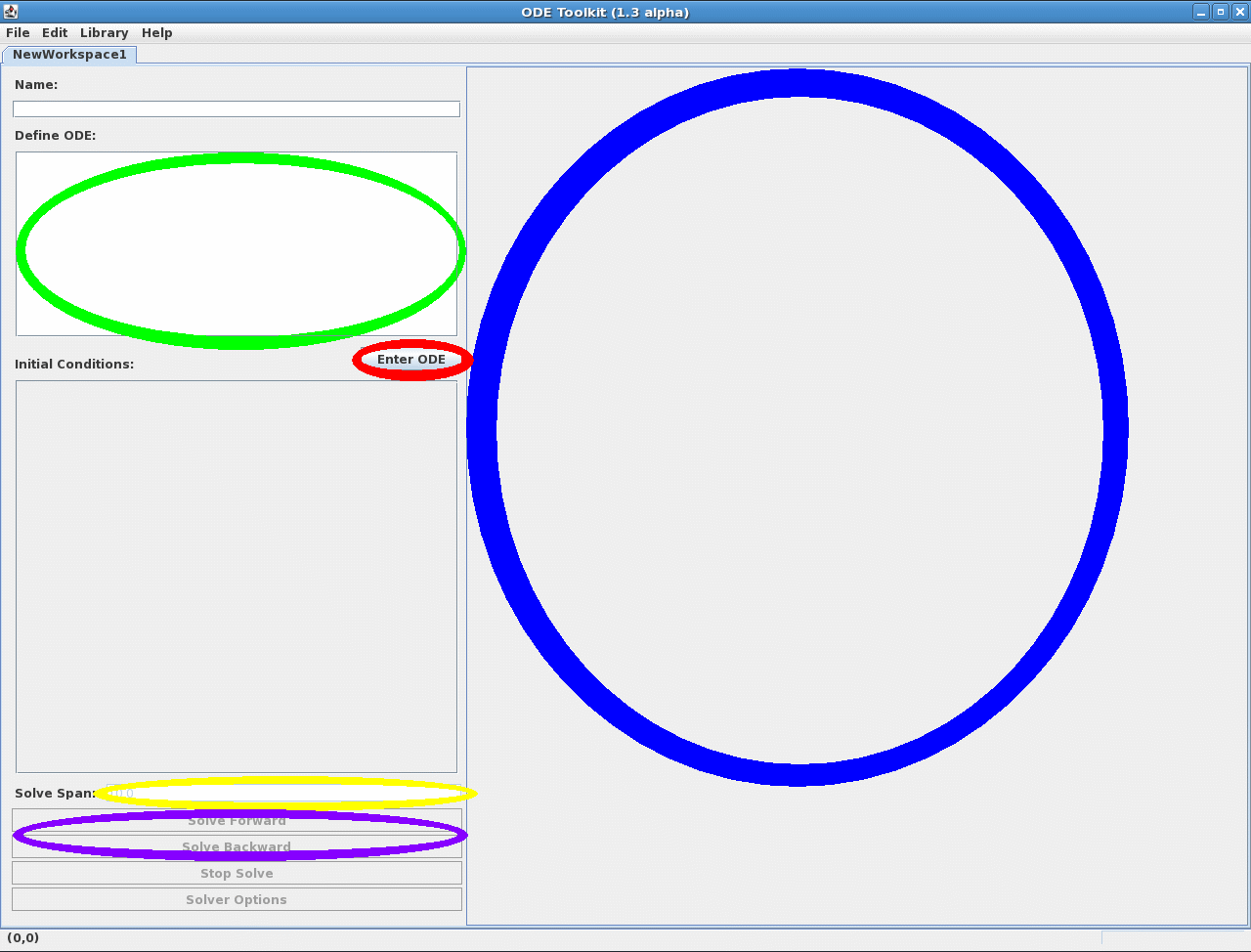
If at anytime, you would like to view examples of ODEs entered in ODEToolkit in the proper syntax, you may view the library of examples which is mentioned in the reference section entitled ODEToolkit Library. When ODE Toolkit first starts, it displays the window shown below. The text input box,labeled Define ODE, where ODEs are entered, is along the left-hand side of the screen. It is circled in green in the image below. Under it, we see the Enter ODE button, circled in red, which must be clicked when finished entering data in the text input box. Below this and circled in yellow is a text box labeled Solve Span. The value in this box tells ODE Toolkit how far to solve in time when the user clicks either the Solve Forward or Solve Backward buttons below, which are circled in purple. On the right side of the screen, circled in dark blue, is where solution curves are plotted.
Note: You may click on the above image to see a larger version of it.
To enter the following differential equation, write into the text input box:
x' = 2*tThis defines a system of ODE's with one state variable, x, defined in terms of the independent variable t. Note that ODE Toolkit always treats t as the independent variable in an ODE, and, thus, t need not (and cannot) be defined elsewhere in the text input box. There are some other important restrictions on entering ODEs that should be noted.
x' = a*2*t
a=5
Click on the Enter ODE button when you are finished entering the text.
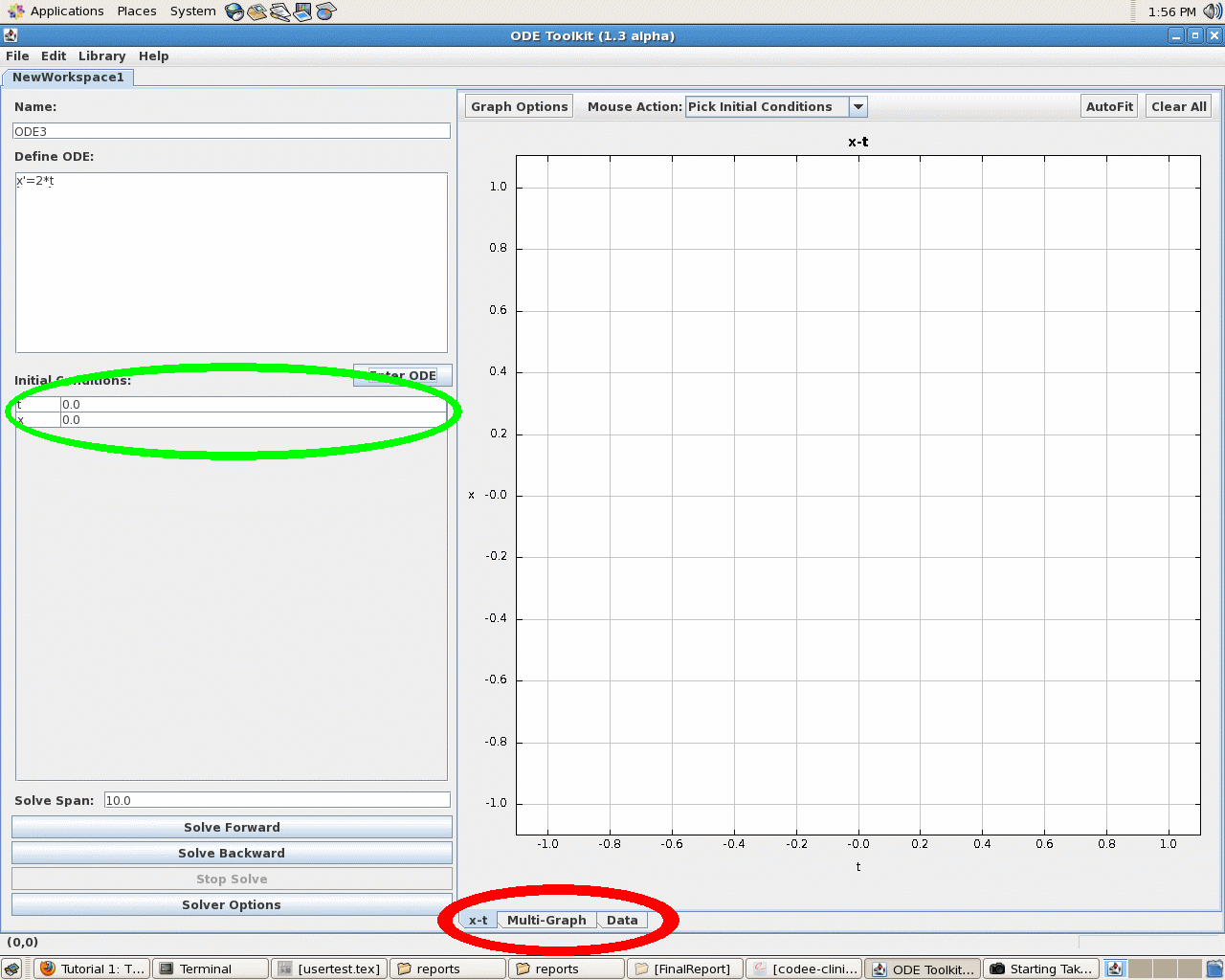
Notice that the screen has now changed to produce the image below:
Note: You may click on the above image to see a larger version of it.
The area under the the Enter ODE button now contains boxes, circled in green, in which we can enter the initial conditions of the system. Note that by default, all of the initial conditions are set to 0. Also note that now there are three tabs under the graph, circled in red and labeled x-t, Multi-Graph, and Data. The only one we are interested in now is x-t, which shows a plot of the state variable x vs. the independent variable t. The other tabs will be explored in a later tutorial.
The scales for solution curves are, by default, set automatically. Fixed scales can be set as follows: right-click anywhere on the graph screen to display a drop-down panel, click on scaling, then Set Window Ranges. Then click off Enable Auto-Scaling, and enter scales for the x and y axes.
Before starting to solve, click on the Solver Option button on the lower left side of the screen. ODEToolkit contains three solvers: Euler, RK, and Rosenbrock. Select one and note that the solver's parameters are set by default but can be changed. See the “Description of the available ODE solvers” section for more information on these solvers.
Now we are ready to start plotting solutions. Note that the Solve Span is set by default to 10 and that the scaling option is by default set to automatic scaling. Now clickthe button labeled Solve Forward in the toolbar. This tells the program to compute a solution curve forward in time, starting at the time entered in the box labeled t: and ending at this time plus the value entered in the Solve Span box. In this case, the initial time is 0 and the solve span is 10, so the program computes a solution curve from t = 0 to t = 10. Note that the autoscaling does not simply scale so that all of the curves in their entirety can be seen at once. The auto scaling does not do this because of situations in which solutions escape to infinity in finite time. Now click the Solve Backwards button in the toolbar. This tells the program to solve backward from the initial time by the amount specified in Solve Span. In this case, it solves from t = 0 to t = -10.
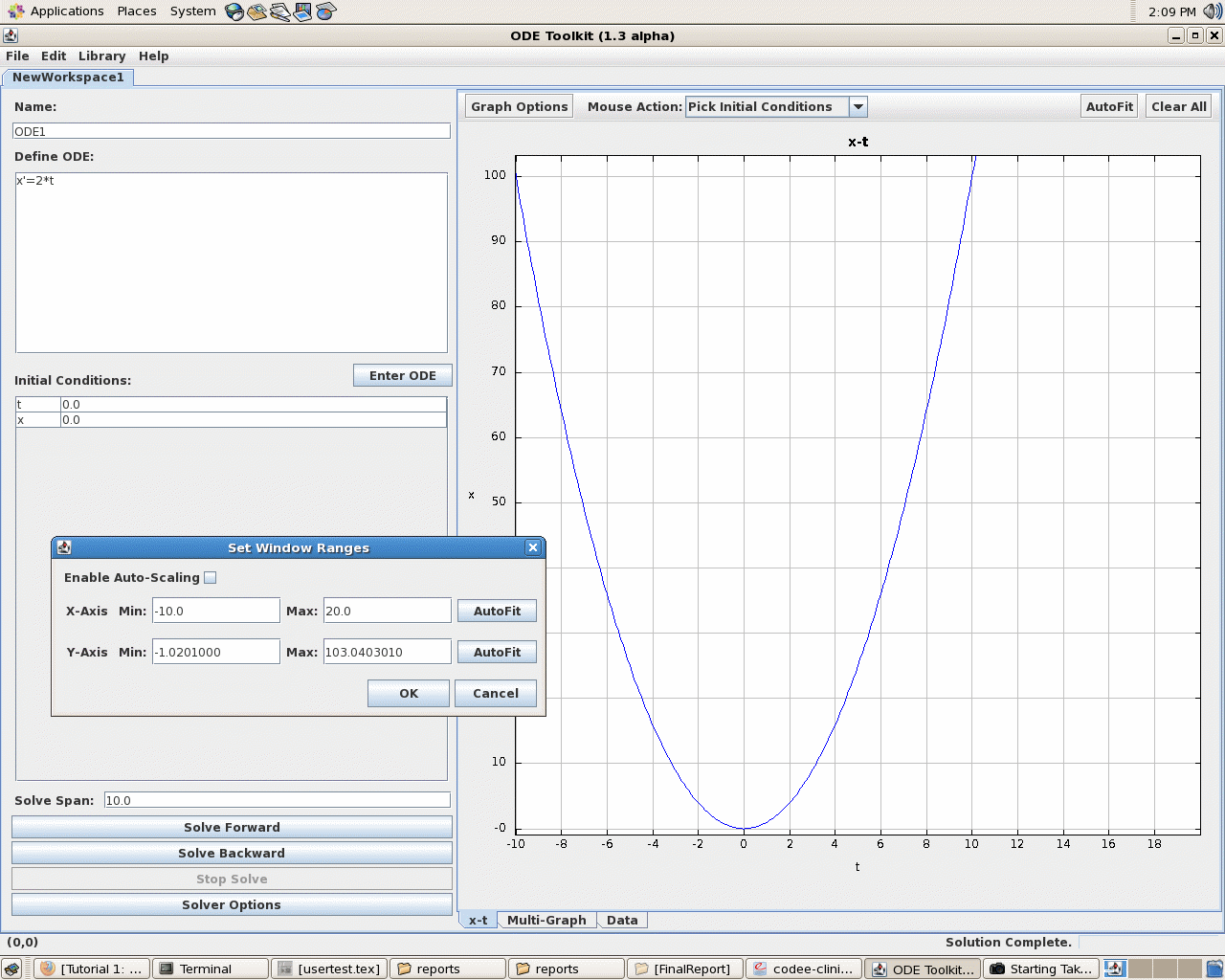
To extend the curve in the forward direction, click the Solve Forward button again. This solves forward in time from the right end of the solution curve by the amount given in the Solve Span text box. In this case, it solves from t = 10 to t = 20. Now we will manually set the window range as follows: Click on the Graph Options button at the top of the screen, then click on scaling, and then click on set window range. Set the x-axis window ranges to -10 and 20 as this is the span over which we just solved. Set the y-axis range from 0 to 100. The window should now look like this:
Note: You may click on the above image to see a larger version of it.
Now that we have computed one solution curve, let's try changing the initial conditions and plotting some more curves. Initial conditions can be set in two ways: either by left-clicking on the graph at the desired point while using the Pick Initial Conditions tool or by typing values directly into the Initial Conditions text boxes located below Enter ODE and above Solve Span. Note that the Pick Initial Conditions tool is the default mouse action. The selection Pick Initial Conditions does not work in 3D-graphs.
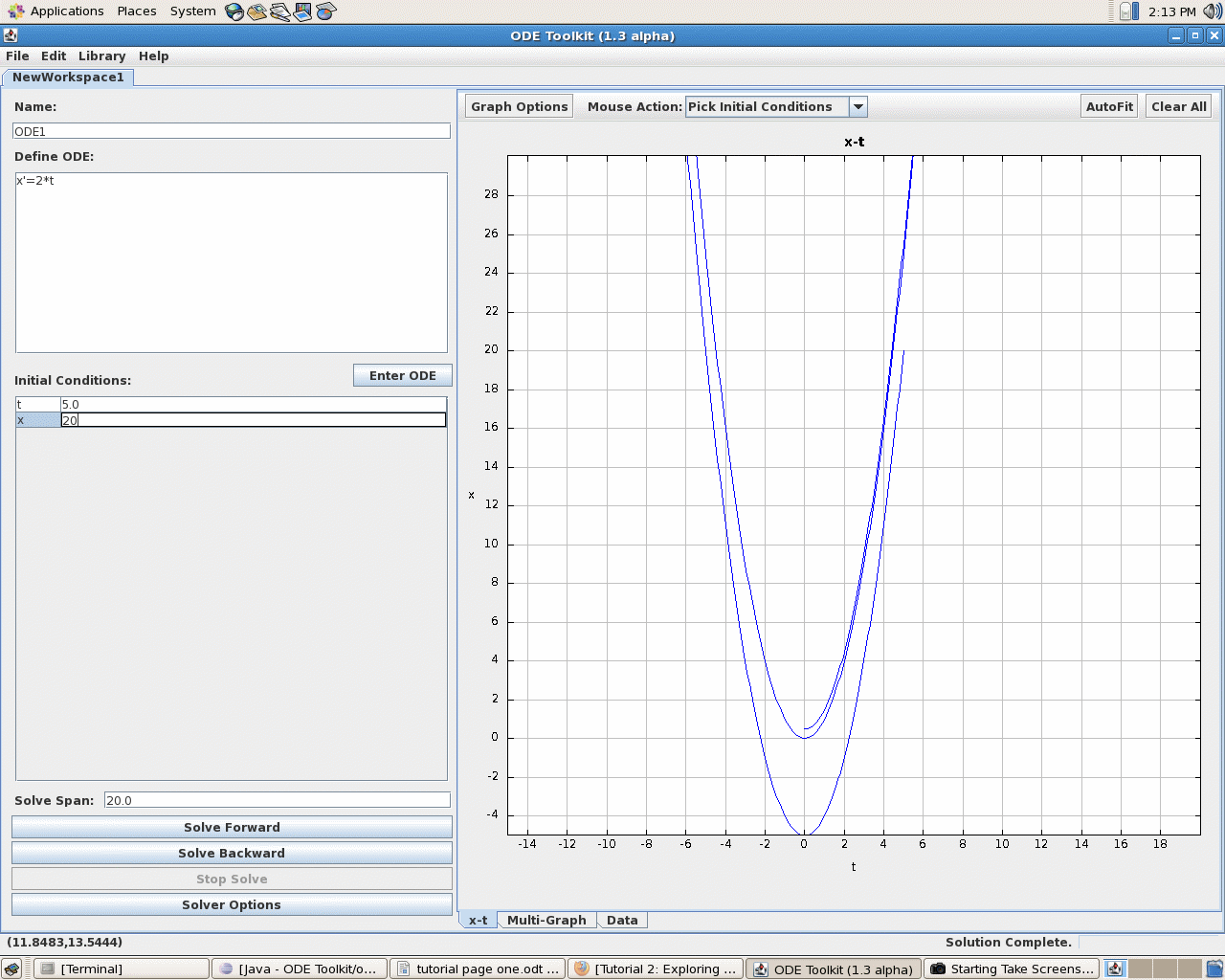
Let's try computing a solution curve backward in time with the initial conditions x = 20, t = 5 by typing 20 into the text box labeled x: and 5 into the box labeled t:. To make things interesting, we'll also change the solve span to 20 by typing 20 into the text box labeled Solve Span. Now click on the Solve Backwards button. Note that the new solution curve starts at t = 5 and ends at t = -15 because the solve span was set to 20. Now click in the graph around the point (0,0.5), change the solve span to 10, and click solve forward. Now change the x-axis window ranges from -15 to 20 and the y-axis range from -5 to 30. The window should now look like this:
Note: You may click on the above image to see a larger version of it.
Well, that's it for this tutorial! I hope you've learned a lot and will take some time to explore the program a little more. When you are ready, check out some of the other tutorials. Happy ODE'ing!